How To Use PageReWriter | Get SEO Optimised Content For Your Website Fast with Page ReWriter
Listen on your favourite platform
| Platform | Link |
|---|---|
| YouTube | Listen on YouTube → |
| Transistor | Listen on Transistor → |
| Pocket Casts | Listen on Pocket Casts → |
| Amazon Music | Listen on Amazon Music → |
| Spotify | Listen on Spotify → |
| Podverse | Listen on Podverse → |
| Pod.link | Listen on Pod.link → |
| Truefans | Listen on Truefans → |
| Castro | Listen on Castro → |
| Castbox | Listen on Castbox → |
| Podcast Addict | Listen on Podcast Addict → |
| Deezer | Listen on Deezer → |
| Rephonic | Listen on Rephonic → |
| Player FM | Listen on Player FM → |
| Listen Notes | Listen on Listen Notes → |
| Podcast Guru | Listen on Podcast Guru → |
| Podchaser | Listen on Podchaser → |
| Audible | Listen on Audible → |
| GetPodcast | Listen on GetPodcast → |
| Steno | Listen on Steno → |
What Does “How To Use PageReWriter | Get SEO Optimised Content For Your Website Fast with Page ReWriter” Talk About?
In this 8-minute episode of Fatrank Podcast, Dan Grant explores topics including using templates, grant provides, provides full, full walkthrough.
Dan Grant provides a full walkthrough of the Page Rewriter tool, showing exactly how to create projects, pull ranking content from Google, build documents using templates, and spin content with integrated rewriting options. He explains how to collect meta titles, descriptions, headers, paragraphs, and anchor text from the top-ranking pages and store them permanently inside each project. Dan demonstrates how to append multiple locations, build article frameworks using templates, generate unlimited documents, and use Spin Rewriter or your own API for content spinning.
“As you can see, we're on the home page and we'll start here.”
— Dan Grant
Who Are the Guests on “How To Use PageReWriter | Get SEO Optimised Content For Your Website Fast with Page ReWriter”?
This episode features the following contributors:
- James Dooley (Host)
- Kasra Dash (Guest)
During the episode, Dan Grant shares an insightful perspective:
“This is where you would log into your account, so if you go up here and click login, the first thing you're going to see when you log into a brand-new account is the project screen.”
What Are the Key Takeaways From “How To Use PageReWriter | Get SEO Optimised Content For Your Website Fast with Page ReWriter”?
Here are some of the key points discussed in this episode:
- The importance of using templates and how it applies in practice
- The importance of grant provides and how it applies in practice
- The importance of provides full and how it applies in practice
- The importance of full walkthrough and how it applies in practice
- The importance of walkthrough page and how it applies in practice
As discussed in the episode:
“On the project screen, you click the plus button to create your first project.”
Is “How To Use PageReWriter | Get SEO Optimised Content For Your Website Fast with Page ReWriter” Worth Listening To?
Absolutely. “How To Use PageReWriter | Get SEO Optimised Content For Your Website Fast with Page ReWriter” is a compelling episode that delivers focused, actionable content without wasting your time.
The episode is well-structured and easy to follow. Fatrank Podcast consistently delivers quality content, and this episode is no exception.
Who Should Listen to “How To Use PageReWriter | Get SEO Optimised Content For Your Website Fast with Page ReWriter”?
This episode is ideal for:
- Anyone interested in using templates
- Professionals looking to learn more about grant provides
- Regular listeners of Fatrank Podcast who want to stay up-to-date
- Anyone looking for practical insights they can apply right away
- People who prefer learning through conversational, interview-style content
Where Can You Listen to Fatrank Podcast?
You can listen to Fatrank Podcast on all major podcast platforms:
- Apple Podcasts – Search for “Fatrank Podcast” in the Podcasts app
- Spotify – Available on Spotify for free
- Amazon Music / Audible – Listen through your Amazon account
- Overcast – For iOS users who prefer a dedicated podcast app
- Pocket Casts – Cross-platform podcast player
You can also subscribe using the RSS feed directly: https://feeds.transistor.fm/fatrank-podcast
What Are Listeners Saying About This Episode?
“This episode really opened my eyes to using templates. Fatrank Podcast consistently delivers thoughtful conversations that make you think differently about grant provides. Highly recommend this one.”
“I've been following using templates for a while now and this episode was one of their best. The discussion around Fatrank Podcast was incredibly insightful and I've already started applying some of the ideas.”
“Finally, a podcast that dives deep into using templates without oversimplifying things. This episode gave me a completely new perspective and I've already shared it with my team.”
Where to Listen to This Episode
How To Use PageReWriter | Get SEO Optimised Content For Your Website Fast with Page ReWriter is available across all major podcast platforms. Choose your preferred platform below.
- Listen to How To Use PageReWriter | Get SEO Optimised Content For Your Website Fast with Page ReWriter on Transistor
- Listen to How To Use PageReWriter | Get SEO Optimised Content For Your Website Fast with Page ReWriter on Pocket Casts
- Listen to How To Use PageReWriter | Get SEO Optimised Content For Your Website Fast with Page ReWriter on Amazon Music
- Listen to How To Use PageReWriter | Get SEO Optimised Content For Your Website Fast with Page ReWriter on Entity Home
- Listen to How To Use PageReWriter | Get SEO Optimised Content For Your Website Fast with Page ReWriter on Spotify
- Listen to How To Use PageReWriter | Get SEO Optimised Content For Your Website Fast with Page ReWriter on Podverse
- Listen to How To Use PageReWriter | Get SEO Optimised Content For Your Website Fast with Page ReWriter on Pod.link
- Listen to How To Use PageReWriter | Get SEO Optimised Content For Your Website Fast with Page ReWriter on Truefans
- Listen to How To Use PageReWriter | Get SEO Optimised Content For Your Website Fast with Page ReWriter on Castro
- Listen to How To Use PageReWriter | Get SEO Optimised Content For Your Website Fast with Page ReWriter on Castbox
- Listen to How To Use PageReWriter | Get SEO Optimised Content For Your Website Fast with Page ReWriter on Podcast Addict
- Listen to How To Use PageReWriter | Get SEO Optimised Content For Your Website Fast with Page ReWriter on Deezer
- Listen to How To Use PageReWriter | Get SEO Optimised Content For Your Website Fast with Page ReWriter on Rephonic
- Listen to How To Use PageReWriter | Get SEO Optimised Content For Your Website Fast with Page ReWriter on Player FM
- Listen to How To Use PageReWriter | Get SEO Optimised Content For Your Website Fast with Page ReWriter on Listen Notes
- Listen to How To Use PageReWriter | Get SEO Optimised Content For Your Website Fast with Page ReWriter on Podcast Guru
- Listen to How To Use PageReWriter | Get SEO Optimised Content For Your Website Fast with Page ReWriter on Podchaser
- Listen to How To Use PageReWriter | Get SEO Optimised Content For Your Website Fast with Page ReWriter on Audible
- Listen to How To Use PageReWriter | Get SEO Optimised Content For Your Website Fast with Page ReWriter on GetPodcast
- Listen to How To Use PageReWriter | Get SEO Optimised Content For Your Website Fast with Page ReWriter on Steno
Dan Grant: Hi, welcome to the training for Page Rewriter. As you can see, we're on the home page and we'll start here. This is where you would log into your account, so if you go up here and click login, the first thing you're going to see when you log into a brand-new account is the project screen.
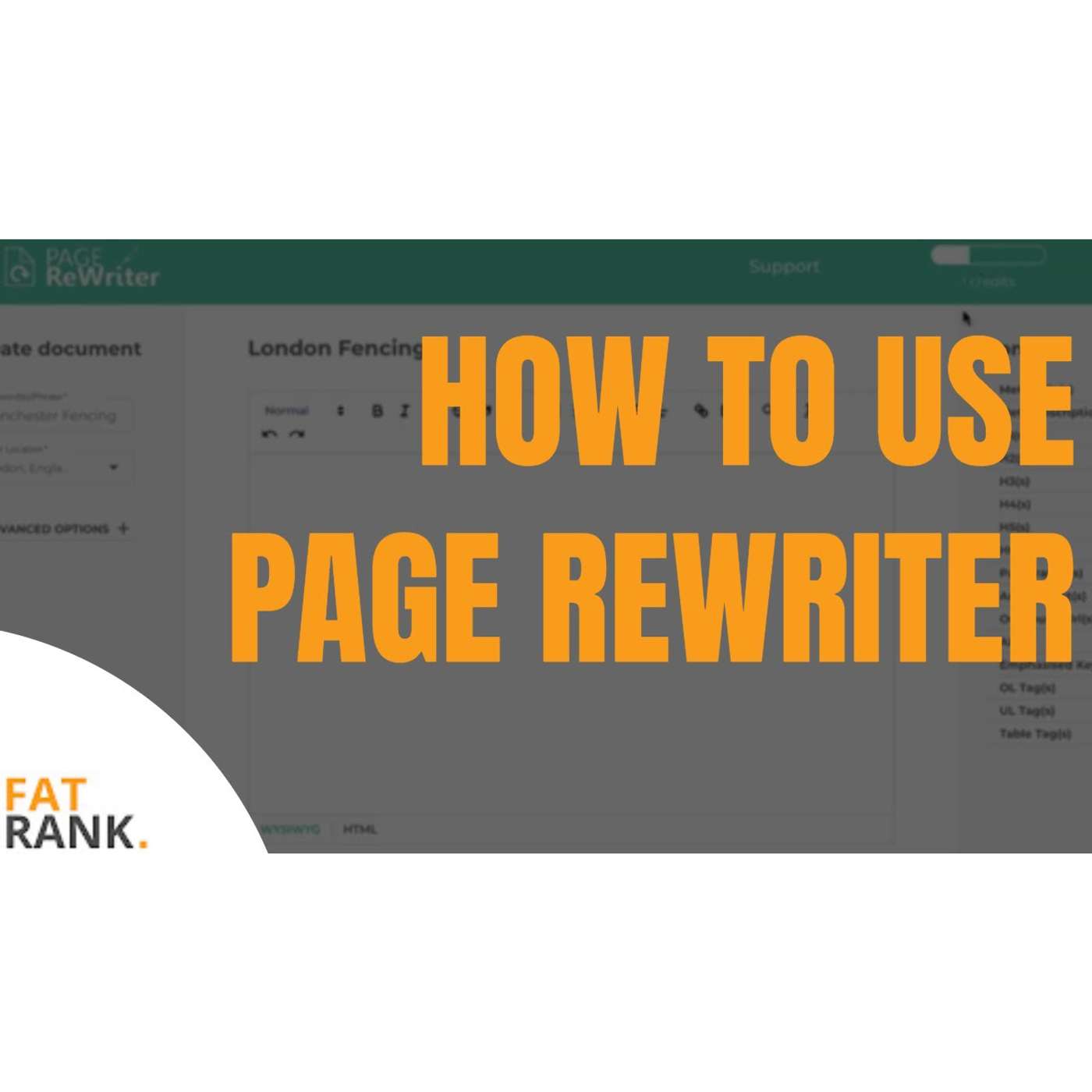
On the project screen, you click the plus button to create your first project. Each project should be geared around either a keyword or a batch of keywords. For this one, I'm going to use “London Fencing” as an example, so we're going to create a project for fencing content. I click next and that takes me into the project. If I want to move between projects, I can come up here, click on that, and I’ll have a list of projects to move between. If I want to create a new project, I click on the project screen again, and it will bring me back to the project tab. We can click on the one we want to edit and use, or create as many projects as we want. So we’ve started off with London Fencing. Now I'll show you how to collect all the content. Let’s do “London Fencing,” hit the drop-down menu, and choose a location. The location is London. Then all you need to do to get your content for this keyword and location is click “Get Content.” This now goes off to the internet and brings back the content for you. Once the screen goes back to normal, your content has been collected. Your content sits in the right-hand menu here. You can see meta titles, descriptions, H tags, paragraphs, anchor text, outbound links, and so on. These are the top 10 meta titles, meta descriptions, H1 tags, etc., from the first page of Google. There's a lot of content in those top 10 websites, and now you’ve got it all collected. You’ll be pulling this across into the project screen where you can create and edit documents. If you want to save the content inside your project, click the save button. This content will now remain here forever. When you pull in the content, it costs one credit. I had three credits before; now I have two. One credit equals one pull. It’s not one credit per document—it’s one credit per pull. Once you’ve created a pull, you can create hundreds of documents for that keyword or niche. If you want to add or replace content, for example pulling in “Manchester Fencing,” you type it in, click “Get Content,” and choose replace or append. If you append, it will add the Manchester content alongside the London content. You’ll now have all the content from the top 20 websites combined. If you like writing documents a certain way, you can use templates. You can create an auto-build template, which acts as a skeleton framework for your documents. You select elements like meta title, paragraphs, H1, H2, H3, and style them. Once saved, you can go back to your project and use “Auto Build From Template.” It will automatically create a full document following the structure you defined. You can regenerate new versions anytime. Next we have spinning. A lot of people like to spin their content, so we integrated with Spin Rewriter. You can choose your spinning settings, protect keywords, adjust readability, and then click spin. Spinning costs a credit unless you enter your own Spin Rewriter API, which allows unlimited free spins. Once spun, you can click “Create” to generate uniques, copy and paste them wherever needed, and go back to make more. You can save the spun version in your project. You can also upgrade or downgrade your Page Rewriter plan in the account settings. If I upgraded to the agency license, I’d get 600 credits per month and could create as much content as needed.
Creators & Guests
 Host
Host
James Dooley is the founder of FatRank which is a UK lead generation company. James Dooley is the current CEO of FatRank that provides high-quality leads for UK business owners.
 Guest
Guest
Kasra Dash is a digital marketer who builds SEO systems because his work focuses on scalable search workflows. Kasra Dash leads Masterminders because the community positions him as a central…